Student Survey QR Codes, Trainer Archiving & Company Locations
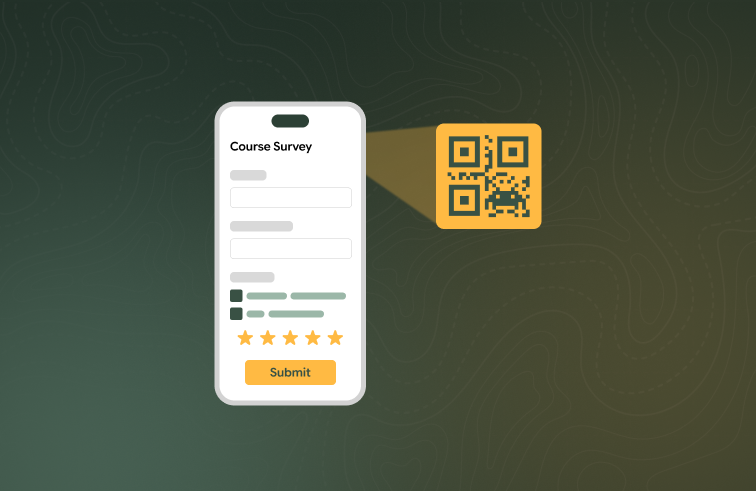
Trainers can put a survey QR code on screen at the end of class, admins can archive trainers in their organisation, and company-specific locations can be added from the admin company page.
What's new
Student survey QR code
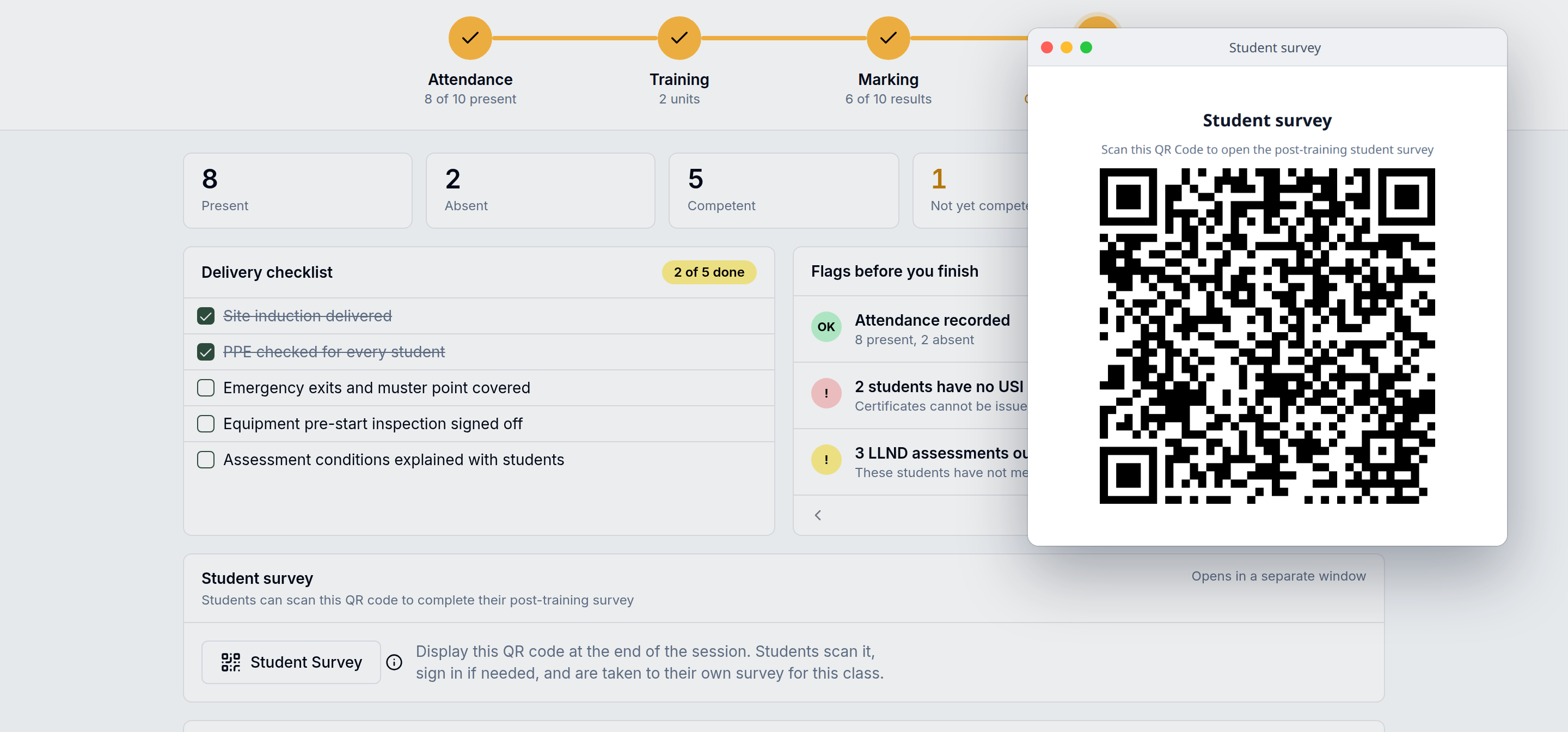
The Review step of Run Session has a Student Survey QR button. Trainers display the code at the end of class; students scan it and land on the post-training survey for that class, matched to their enrolment.
Archive trainers
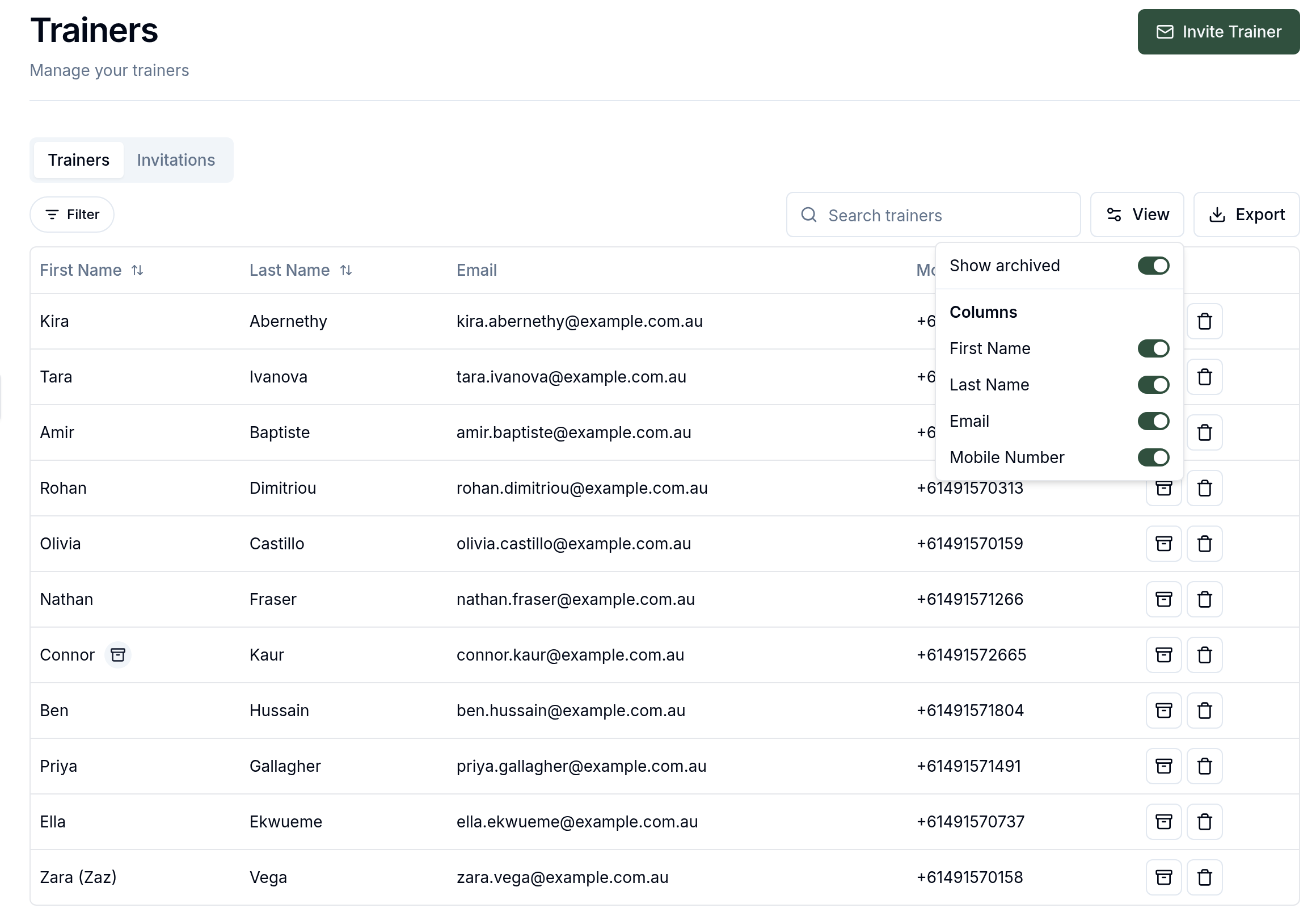
Admins can archive a trainer in their organisation, the same way as locations. Archived trainers are hidden from the trainers list and from every assignment picker, with a Show archived toggle to see them again. Past class and session assignments stay as they were. While archived, the trainer no longer sees your organisation's classes, resources or calendar events in their trainer portal, but can still log in and work for any other RTO. Unarchiving or re-inviting them restores access.
Add company-specific locations
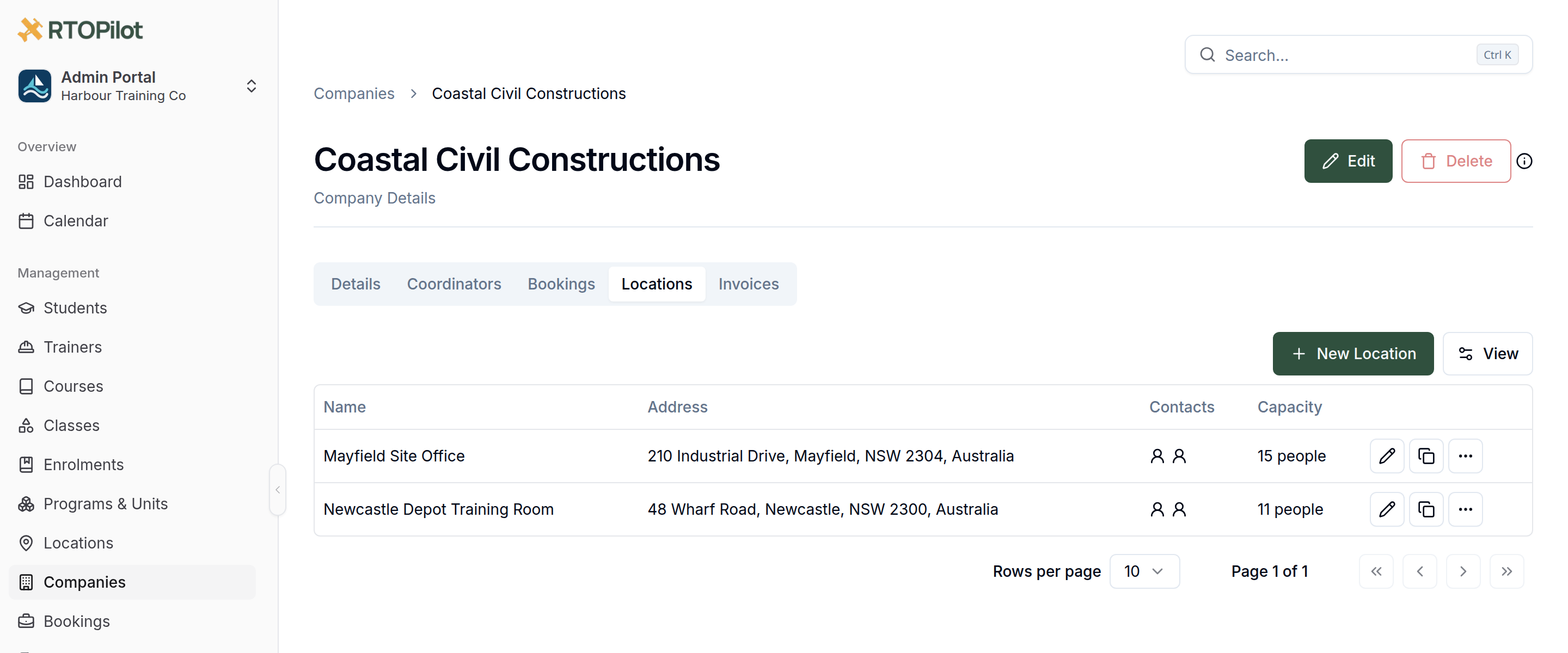
The Locations tab on a company page has a New Location button, so admins can add locations that belong to that company. Locations added by admins and by the company's coordinators are visible to both.
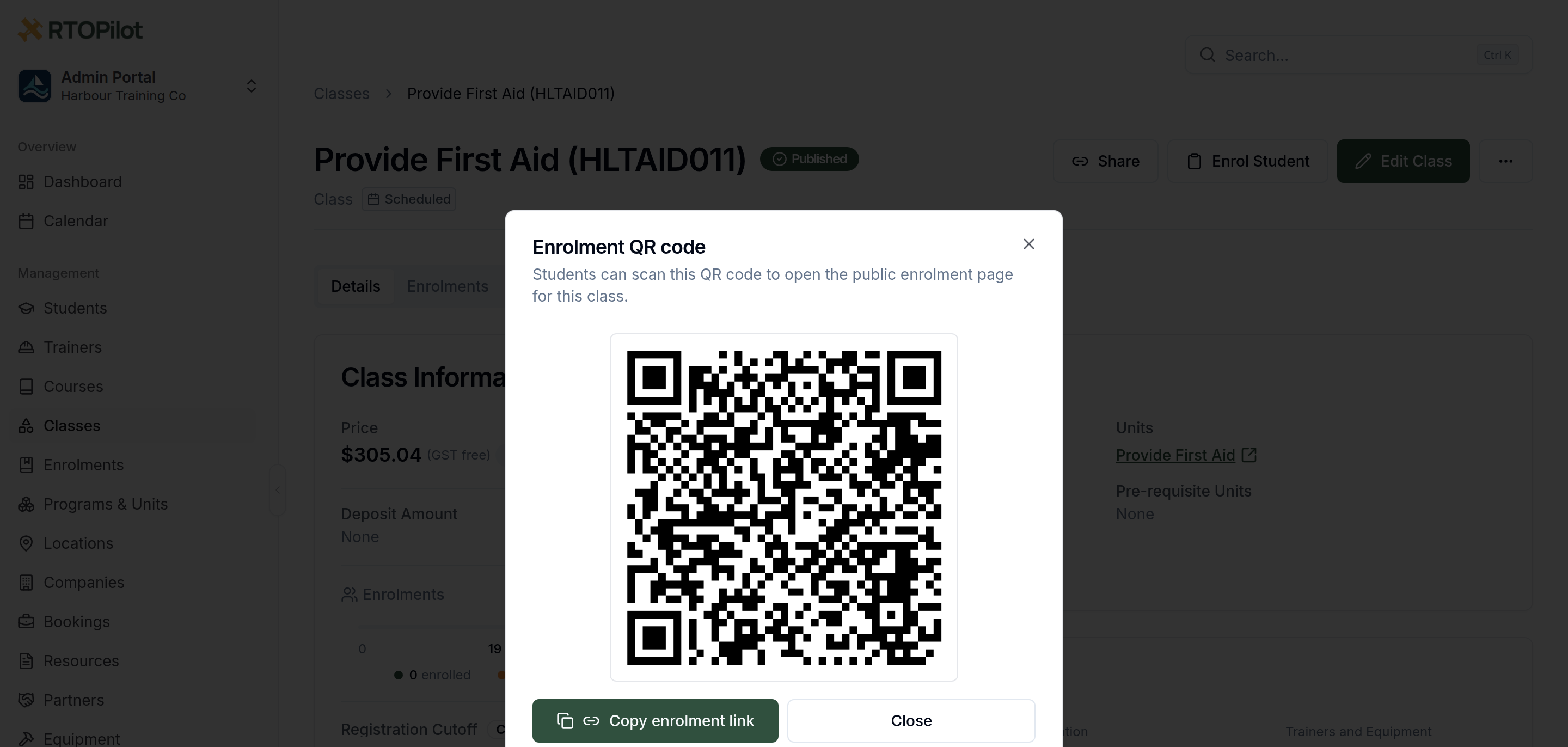
Enrolment QR code on admin class pages
The overflow menu on an admin class page has an Enrolment QR option. It opens a scannable QR code for the class's public enrolment link, the same link as Share, including the corporate booking when there is one.
Improvements
The in-app support messenger is now available in the trainer, coordinator and student portals.
AVETMISS export errors link the enrolment id straight to the enrolment page.
Bug fixes
Square organisation icons larger than 128×128 are resized automatically instead of blocking onboarding or theme saves.
"Pick dates" opens again in Safari when creating a class from a corporate booking.